This is default featured slide 1 title

Go to Blogger edit html and find these sentences.Now replace these sentences with your own descriptions.This theme is Bloggerized by Lasantha Bandara - Premiumbloggertemplates.com.

This is default featured slide 2 title

Go to Blogger edit html and find these sentences.Now replace these sentences with your own descriptions.This theme is Bloggerized by Lasantha Bandara - Premiumbloggertemplates.com.

This is default featured slide 3 title

Go to Blogger edit html and find these sentences.Now replace these sentences with your own descriptions.This theme is Bloggerized by Lasantha Bandara - Premiumbloggertemplates.com.

This is default featured slide 4 title

Go to Blogger edit html and find these sentences.Now replace these sentences with your own descriptions.This theme is Bloggerized by Lasantha Bandara - Premiumbloggertemplates.com.

This is default featured slide 5 title

Go to Blogger edit html and find these sentences.Now replace these sentences with your own descriptions.This theme is Bloggerized by Lasantha Bandara - Premiumbloggertemplates.com.

Showing posts with label Blogging & tips. Show all posts

Sunday, 5 July 2015

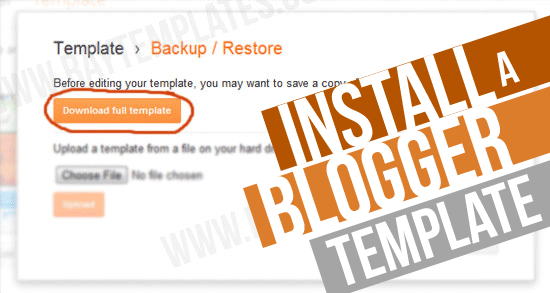
How To Upload/Install Template On Blogger


INTRODUCTION:

Hello friends, about 2-3 days ago many friends told me that "how to upload template on blogger" So today I am with this post because many peoples don't know how to upload/install template and its a common thing now a days because many peoples which starting blogging or beginner they didn't know how do this but don't worry those friends who don't know today I post this tutorial.So lets go.

STEPS:

*.First go to your blogger dashboard. *.Then click On Template and choose your template which you want, if you want to choose internal blogger template. *.Finally its done save your template. Or if you downloaded template from outside than follow given below steps. How To Upload External Templates *.First Go to your blogger dashboard than click onTemplate>backup/restore.

*.Than a popup box will appear on your screen like given below snap shot.

*.Now download your recent template as a backupthen click on Browse to browse your template which you downloaded.

*.Note that when you download template than its in .zip format so that extract it and upload .xml file.

*.Finally click on "Upload".

Now You Done

How To Add Or Verify Your Blogger Blog On Alexa?


INTRODUCTION:

Hello Guys Today I Am Teaching All Of You

How To Verify Your Blogger Blog On Alexa?

Its Very Simple Just Do Follow Steps :-)

STEPS:

1.Login or Create an account on Alexa.

2.Go to http://www.alexa.com/siteowners/claim

3.Enter your site URL and click the "Continue" button.

4.Select Method 2.

5.Copy the meta tag (which looks like this:

).

6.Log into your blog in a new window or tab.

7.Click on the “Template” link in the left-hand navigation.

8.Click on the “Edit HTML” button.

9.Paste the Alexa meta tag just under the “” tag.

10.Click the “Save Template” button.

11.Go back to Alexa and press the “Verify my ID” button.

Your site should now be claimed.

Click on the Continue button if you wish to update your site’s Site Overview page.

NOTE:

The Blogger/ blogspot.com Dynamic View templates do not support adding HTML